Using External Packages in handler
A handler is essentially a JavaScript async function running in the browser environment, so in theory it can accomplish most tasks that a browser can handle.
However, in practice, relying solely on the browser's built-in utilities is not enough to build feature-rich JS code. We often need third-party packages to help implement various functionalities.
This article explains how to use external packages in the handler to extend its capabilities.
Embedded Packages
ToolBake has a rich collection of official tools (such as UUID generation, video transcoding, image transcoding). To implement these features, many commonly used packages are built in.
You can load and use these built-in packages directly in the handler via await requirePackage('package-name').
For example, to implement the UUID Generator official tool, ToolBake has the npm uuid package built in.
You can load and use this package directly in the handler via await requirePackage('uuid'), as shown below:
async function handler(inputWidgets, changedWidgetIds) {
  ......
  uuid = await requirePackage("uuid");
  resultUUID = uuid.v4();
  console.log("resultUUID: ", resultUUID);

  ......
}
Full Embedded Package List
Please refer to the Embedded Package List.
Some Special Embedded Packages
ffmpeg.wasm
ToolBake ships with a large number of official tools for video and audio processing. These tools are diverse, powerful, and run entirely on your client side (browser) — the server is not involved in any processing.
You might be curious how this is achieved. The answer is ffmpeg.wasm. Thanks to the ffmpeg.wasm project, we can run nearly full-featured ffmpeg in the browser.
ToolBake has ffmpeg.wasm built in to power all these video and audio processing features. You can load and use it in your custom tools via await requirePackage('ffmpeg').
async function handler(inputWidgets, changedWidgetIds) {
  ......
  ffmpeg = await requirePackage("ffmpeg");
  const ffmpegInstance = new ffmpeg.FFmpeg();
  await ffmpegInstance.load_ffmpeg();
  ......
}
Note the code above — since a wasm tool needs to dynamically load the corresponding .wasm file in addition to the JS file itself, ffmpeg usage differs from other packages.
Besides await requirePackage('ffmpeg') and creating a new FFmpeg object, you also need to call ffmpegInstance.load_ffmpeg() to load the ffmpeg wasm file.
After calling
load_ffmpeg(), ToolBake will automatically download the built-in ffmpeg wasm file and additional required JS files from the ToolBake server.
If you want to customize the URLs for the .wasm and other files, you can call ffmpegInstance.load() to specify custom URLs:
async function handler(inputWidgets, changedWidgetIds) {
    ...
    const { FFmpeg } = await requirePackage("ffmpeg");
    const ffmpeg = new FFmpeg();
    await ffmpeg.load({
    coreURL       : "https://example.com/ffmpeg-core.js",
    workerURL     : "https://example.com/ffmpeg-core.worker.js",
    wasmURL       : "https://example.com/ffmpeg-core.wasm",
    });
    ...
}
ffmpeg.wasm Sample
Below is an example of a tool that uses ffmpeg.wasm to scale down both the width and height of a user-uploaded video by 50%.
The code has been simplified to illustrate the core functionality.
async function handler(inputWidgets, changedWidgetIds) {
  ......

  // load ffmpeg package
  ffmpeg = await requirePackage("ffmpeg");
  const ffmpegInstance = new ffmpeg.FFmpeg();
  await ffmpegInstance.load_ffmpeg();

  // get file object from inputWidgets and convert it to Uint8Array
  const file = inputWidgets["uploaded_video"];
  const fileName = file.name || "input.mp4";
  const uint8 = new Uint8Array(await file.arrayBuffer());
  console.log("writing input into ffmpeg virtual FS:", fileName, uint8.length);

  // write file to ffmpeg virtual FS
  await ffmpeg.writeFile(fileName, uint8);

  // exec ffmpeg command
  await ffmpeg.exec(["-i", fileName, "-vf", "scale=iw*0.5:ih*0.5", "-c:a", "copy", "output.mp4"]);

  // read output file from ffmpeg virtual FS and you can do whatever you want with the data
  const outputBuffer = await ffmpeg.readFile("output.mp4");

  return {
    output_video_label: `<video xxxxxxx>`
  };
}
Displaying ffmpeg Processing Progress
ffmpeg video and audio processing can take some time, and leaving the UI unresponsive is a poor experience.
You can combine the progress UI component with ffmpeg.wasm's ffmpeg.on("progress", ({ progress, time }) => { ... } ) event to display processing progress.
For detailed usage of progress, refer to the ffmpeg.wasm official documentation.
async function handler(inputWidgets, changedWidgetIds) {
  ......

  // in handler, you can use function "callback()" to update ui widget value real time without waiting for handler to finish
  const runWithProgress = (args, label) => {
    return new Promise((resolve, reject) => {
      // initial progress
      callback({
        "progress-ui-id": {
          current: 0,
          total: 100,
          percent: 0,
          label: label,
          hint: 'Starting'
        }
      });

      const handleProgress = ({ progress, time }) => {
        const pct = Math.min(100, Math.max(0, Math.round((progress || 0) * 100)));
        callback({
          "progress-ui-id": {
            current: pct,
            total: 100,
            percent: pct,
            label: label,
            hint: `time: ${time || 0}`
          }
        });
      };

      ffmpeg.on('progress', handleProgress);

      ffmpeg.exec(args).then((res) => {
        resolve(res);
      }).catch(reject).finally(() => {
        if (typeof ffmpeg.off === 'function') ffmpeg.off('progress', handleProgress);
      });
    });
  };

  ...
}
ffprobe
ffprobe is an ffmpeg utility for inspecting detailed information about video and audio files. It is frequently used alongside ffmpeg to accomplish various tasks.
ffprobe is already included in ffmpeg.wasm. After await requirePackage("ffmpeg"), you can use ffprobe directly.
async function handler(inputWidgets, changedWidgetIds) {
  ......
  ffmpeg = await requirePackage("ffmpeg");
  const ffmpegInstance = new ffmpeg.FFmpeg();
  await ffmpegInstance.load_ffmpeg();
  await ffmpeg.ffprobe([xxxxx]);
  ......
}
If you need to capture ffprobe's output in a structured format for further processing, you can output it to a file using -o and then read it with ffmpeg.readFile().
async function handler(inputWidgets, changedWidgetIds) {
  ......
  ffmpeg = await requirePackage("ffmpeg");
  const ffmpegInstance = new ffmpeg.FFmpeg();
  await ffmpegInstance.load_ffmpeg();

  await ffmpeg.ffprobe([
    "-print_format",
    "json",
    "-show_format",
    "-show_streams",
    "-i",
    "input.mp4",
    "-o",
    "output.txt",
  ]);
  const data = ffmpeg.readFile("output.txt");
  ......
}
ImageMagick
ToolBake's rich image processing capabilities are powered by ImageMagick Wasm.
You can load and use it in the handler via await requirePackage("@imagemagick/magick-wasm"), just like ffmpeg.
async function handler(inputWidgets, changedWidgetIds) {
  ......
  // load image-magick package
  const Magick = await requirePackage("@imagemagick/magick-wasm");
  await Magick.initializeImageMagick(); // dynamic load image-magick wasm file

  Magick.ImageMagick.read("logo:", (image) => {
    image.resize(100, 100);
    image.blur(1, 5);
    const result = image.toString();
    console.log(result);
  });

  ......
}
Like ffmpeg, ImageMagick also needs to dynamically load additional wasm files. When you call Magick.initializeImageMagick(), the built-in ImageMagick wasm file will be automatically downloaded from the ToolBake server.
If you need to customize the wasm file URL, you can specify it as follows:
const customWasmUrl = "https://example.com/magick.wasm";
const Magick = await requirePackage("@imagemagick/magick-wasm");
const wasmBytes = new Uint8Array(await (await fetch(customWasmUrl)).arrayBuffer());
await Magick.initializeImageMagick(wasmBytes)
ImageMagick Wasm Feature Support and Limitations
ImageMagick wasm does not necessarily support all filters, features, and formats available on the desktop version.
For the full ImageMagick Wasm feature support list, please refer to official tool ImageMagick.wasm Feature List.
Special Limitation: ImageMagick Wasm Does Not Support SVG Processing
ImageMagick wasm does not support SVG processing
Author's response:
I did not add support for SVG files because browsers tend to be better at this. I would advise you to draw the svg on a canvas and then read the image from that canvas.
If you need to process SVGs, first render the SVG to PNG using the browser's Canvas API, then perform the format conversion.
7z-wasm
7z-wasm provides ToolBake with the ability to handle various archive formats.
To use the 7-Zip wasm module, load it with await requirePackage("7z-wasm"). The system automatically configures the wasm resource path — no need to manually pass locateFile.
async function handler(inputWidgets, changedWidgetIds) {
  ......
  const SevenZipFactory = await requirePackage("7z-wasm");
  const sevenZip = await SevenZipFactory();
  ......
}
File I/O works the same way as ffmpeg — you first write the user's input file into 7z wasm's virtual FS, then execute the command via sevenZip.callMain().
async function handler(inputWidgets, changedWidgetIds) {
  ......
  const archiveBytes = new Uint8Array(await file.arrayBuffer());
  const archiveName = "archive.zip";
  sevenZip.FS.writeFile(archiveName, archiveBytes);

  // List archive contents with 7z -slt
  sevenZip.callMain(["l", "-slt", archiveName]);
  ...
}
If the archive is password-protected, use the -p flag, e.g. ["l", "-slt", "-pYourPassword", archiveName].
For debugging purposes, it is recommended to capture stdout/stderr via print / printErr, then parse or display the output.
7z-worker Usage (Recommended — Avoids Main Thread Blocking)
When processing large archives, running 7z-wasm on the main thread will block the UI. It is recommended to use await requirePackage("7z-worker") to get a Web Worker-based 7-Zip instance.
async function handler(inputWidgets, changedWidgetIds) {
  ......
  const createSevenZipWorker = await requirePackage("7z-worker");
  const sevenZip = await createSevenZipWorker({
    onLog: ({ stream, text }) => {
      console.log(`[${stream}]`, text);
    },
  });

  const archiveBytes = new Uint8Array(await file.arrayBuffer());
  await sevenZip.FS.writeFile("archive.zip", archiveBytes);
  const result = await sevenZip.callMain(["x", "-bsp1", "-bso1", "-bse1", "-bb1", "archive.zip"]);

  if (result.exitCode !== 0) throw new Error("7-Zip failed.");
  const extracted = await sevenZip.FS.readFile("some-file.txt");
  sevenZip.terminate();
  .....
}
Using Third-Party Packages
Although ToolBake ships with many commonly used packages, real-world needs are often more complex, and you may want to import additional packages in the handler to unlock more functionality.
This is very simple with ToolBake — it's all done through requirePackage().
Finding the Right Package and Its HTTP Service
Imagine you are creating a tool for complex mathematical calculations, but the browser's built-in Math object doesn't meet your needs.
After some searching, you find a package called mathjs. It's very powerful, and you want to import it into your handler.
Since the handler runs in the browser, you can only load a compiled mathjs file from a remote HTTPS server.
Many websites serve npm packages over HTTP. Here we use jsdelivr to get mathjs.
Visit the following URL: https://www.jsdelivr.com/package/npm/mathjs
You will see the detailed information for the mathjs package, along with instructions on how to include it in HTML. Select the ESM tab in the dark box and copy the corresponding HTTP URL.
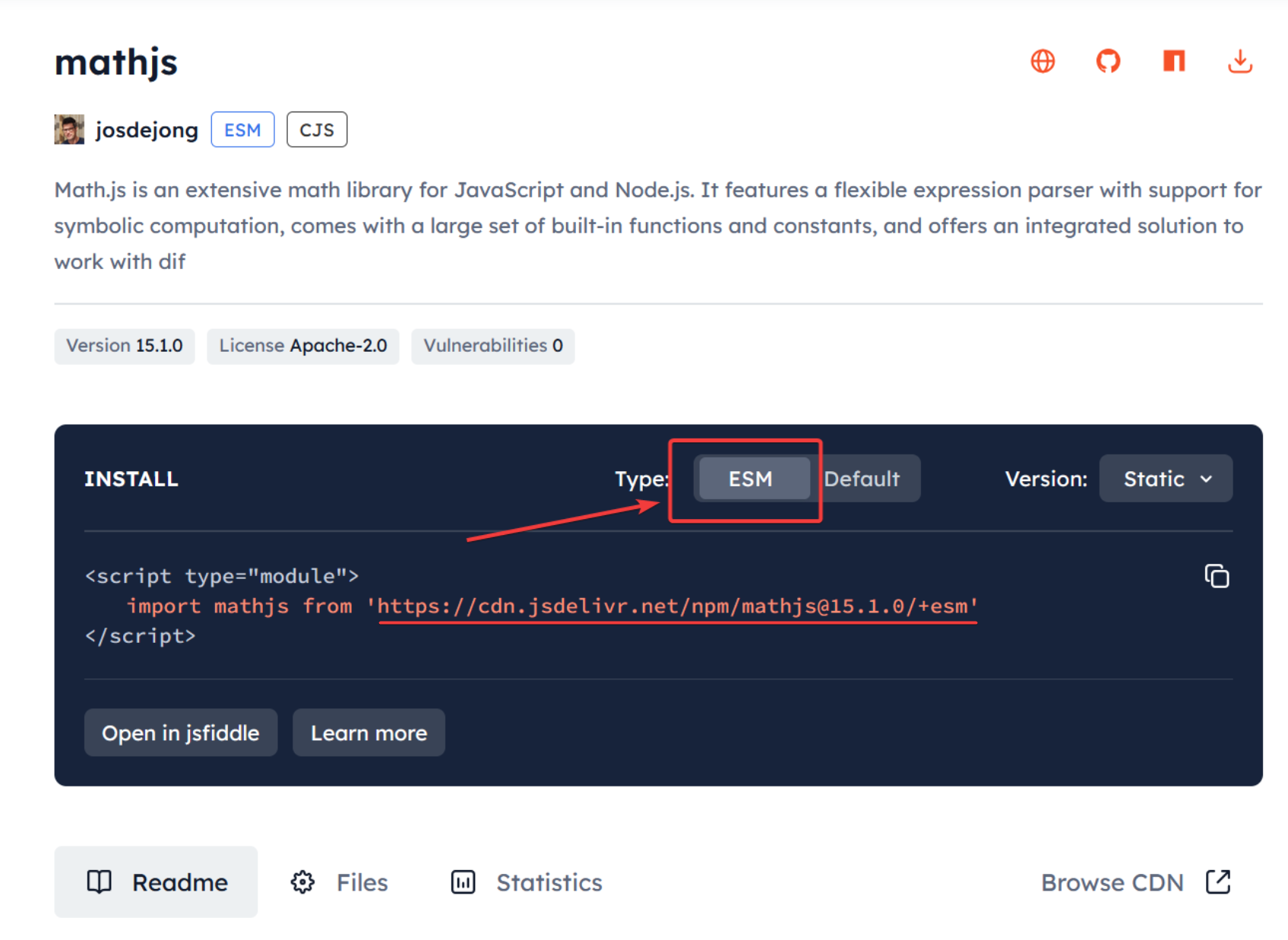
Importing mathjs in the handler
After obtaining the mathjs HTTP URL, you can load mathjs in the handler using await requirePackage().
The usage is the same as importing an embedded package, except the package name is replaced with the mathjs HTTP URL.
async function handler(inputWidgets, changedWidgetIds) {
  ......
  const mathjs = await requirePackage("https://cdn.jsdelivr.net/npm/mathjs@15.1.0/+esm");
  const result = mathjs.evaluate('sin(45 deg) ^ 2')
  .....
}
requirePackage() Only Supports ESM Modules
This is very important — due to the sandbox implementation of ToolBake's handler, requirePackage() only supports dynamically loading ESM modules. UMD modules are not supported.
When you try to load a UMD module with requirePackage(), you will not be able to access the module.
So Why???
To ensure security, ToolBake's handler does not run directly in the browser's global context. Instead, it runs in a relatively isolated sandbox, which means the handler cannot directly access the window object.
UMD packages mount the module onto the page's window object. So even if a UMD package is loaded in the handler, since the handler cannot access the window object, UMD packages cannot be used in the handler.