Edit Mode UI Walkthrough
Before reading this article, make sure you have read Basic Concepts and A Simple Tool Sample to understand the composition of a tool (what handler and uiWidgets are).
uiWidgets tab
The uiWidgets tab in edit mode is the tool's UI editor. In this view, you can define the tool's UI and preview it in real time.
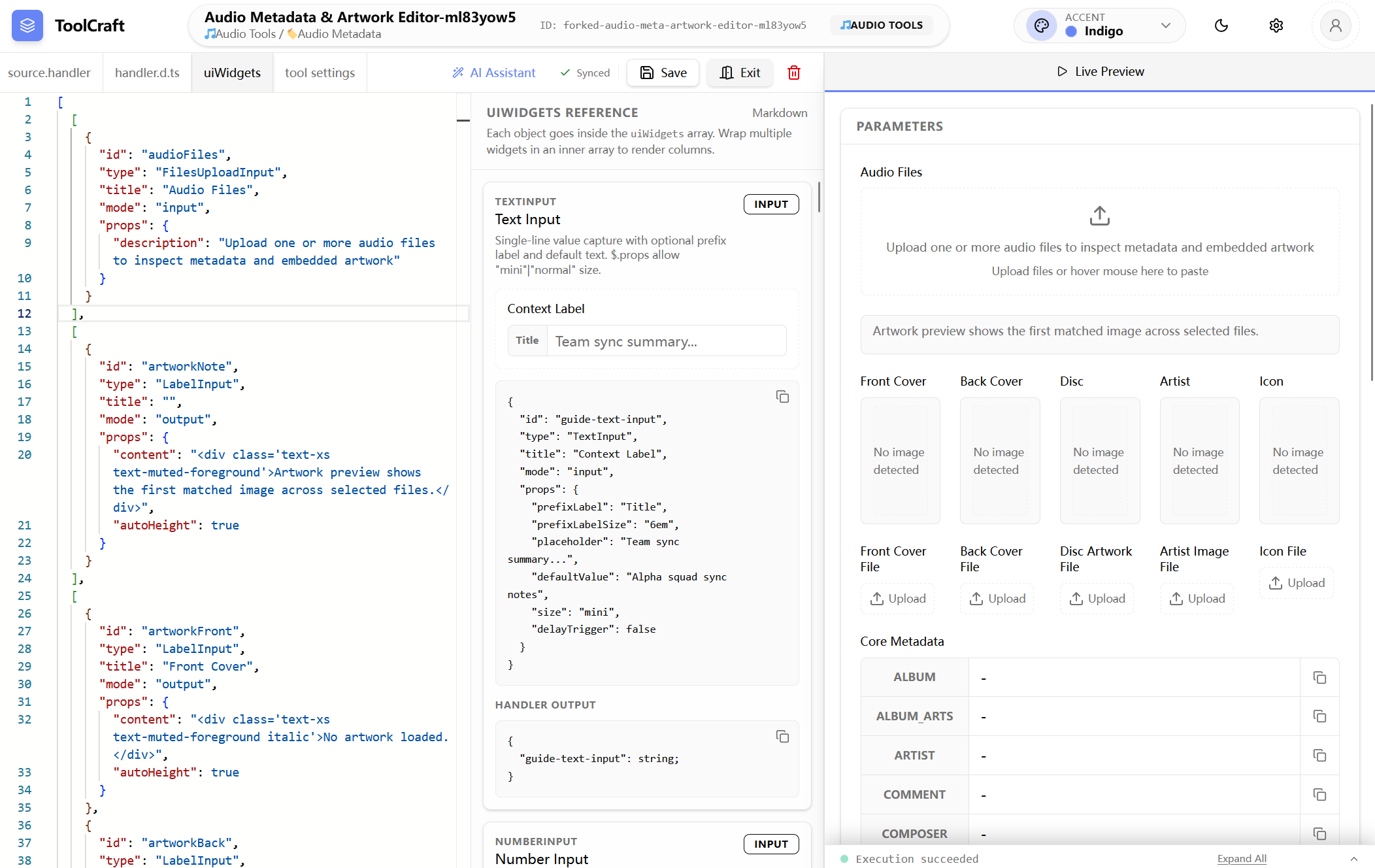
The view is divided into three sections:
uiWidgets json editor
The left area is a code editor for editing the uiWidgets JSON definition.
Your edits in the editor are synced to the preview panel on the right in real time.
uiWidgets reference
The middle section displays a list of all UI components supported by ToolBake.
You can browse this list and pick the components you want to use.
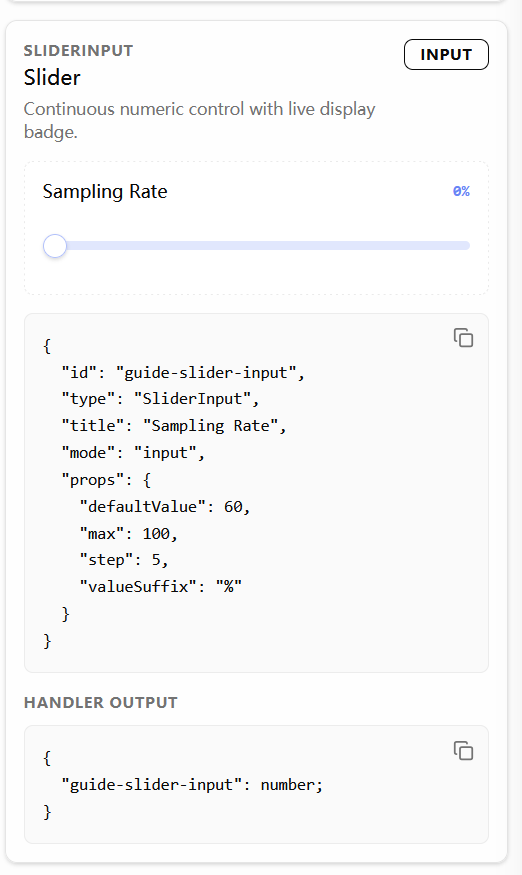
Each component comes with a live preview and a sample object. Simply copy the corresponding sample object into the editor to see an instant preview.
The Handler output section at the bottom of each component shows what type of value this component will return to the inputWidgets parameter in the handler when the handler is triggered.
source.handler tab
In the source.handler tab, you can edit the tool's handler code.
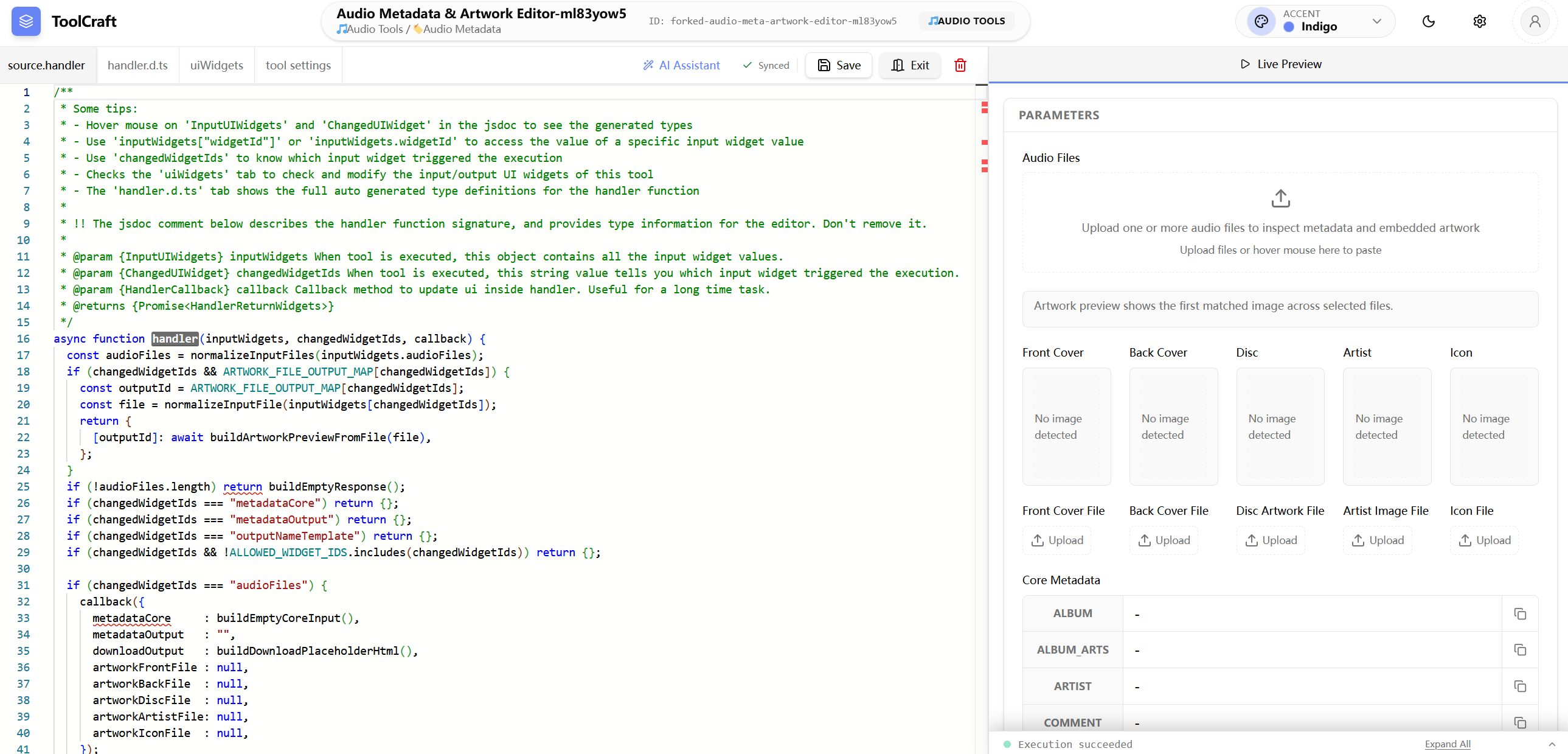
To provide a great development experience in the browser, ToolBake ships with a powerful built-in code editor (thanks to monaco-editor) that offers comprehensive type checking and rich editing features.
For example, if you define a UI component with id=audioFiles in uiWidgets, the editor will automatically provide code completion when you type inputWidgets.audio.

When using the inputWidgets["xxx"] syntax to get a UI component's value, you can manually trigger code completion by pressing Ctrl + Space.

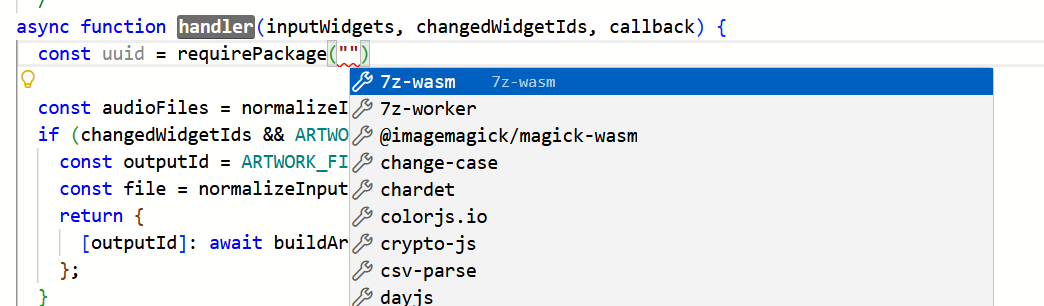
Similarly, when you want to import a built-in package via requirePackage(), pressing Ctrl + Space will list all supported built-in package names.
handler.d.ts tab
You might be curious how the editor provides such powerful code completion. The answer lies in the handler.d.ts tab.
Open the handler.d.ts tab and you'll see a large amount of auto-generated type hints inside.
ToolBake automatically analyzes your defined uiWidgets and various other information, then dynamically generates the corresponding .d.ts file to provide code type hint capabilities.
The type hint information in the source.handler editor comes entirely from this tab.
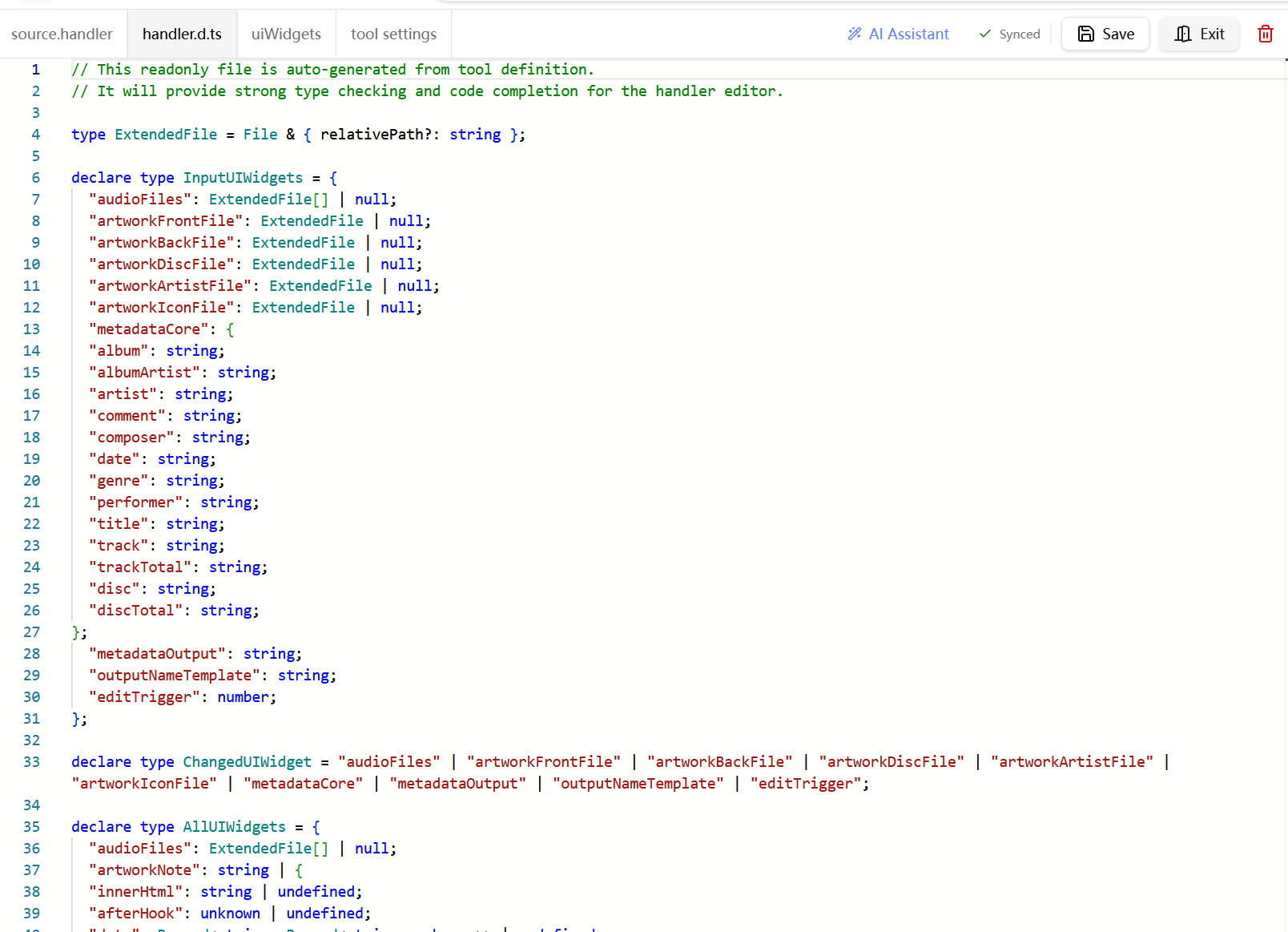
The type information in the handler.d.ts tab is read-only. You cannot modify it — it is fully auto-generated by ToolBake.
This tab is provided so that users can review and verify the generated types.
tool settings tab
In this tab, you can define the tool's basic information, such as the tool's name, description, category, and more.
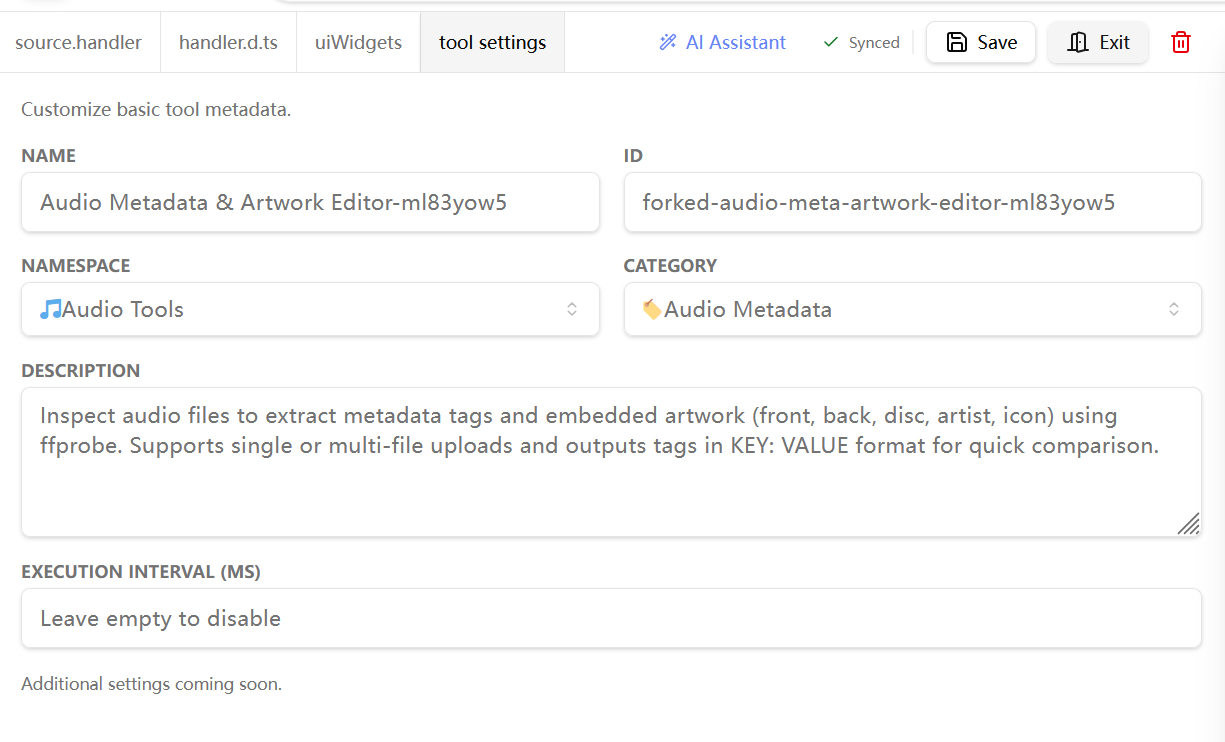
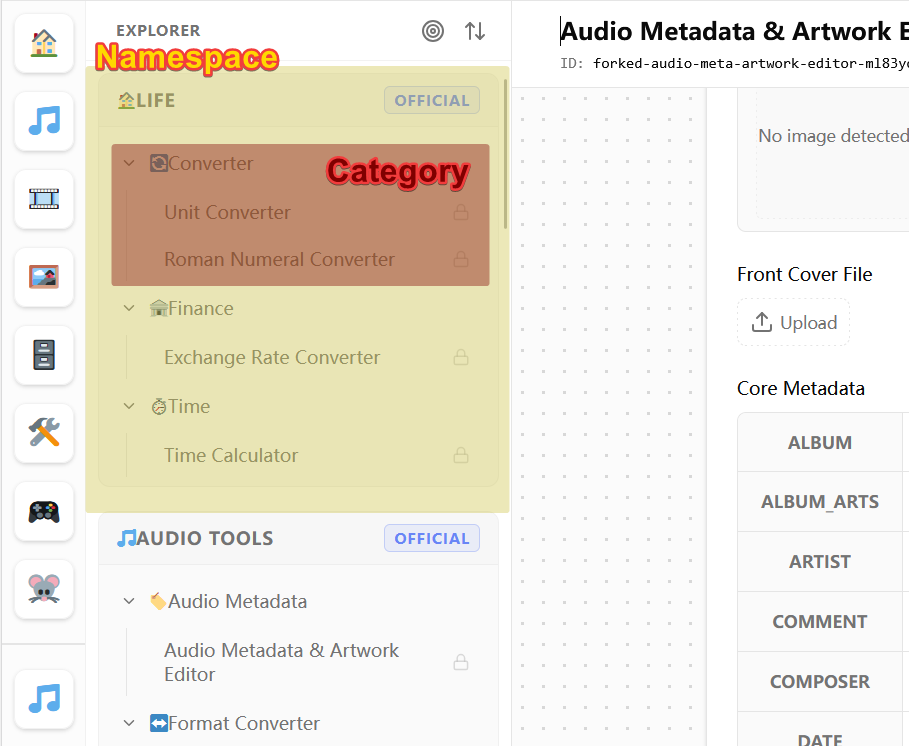
Two fields in the tool information deserve special attention: Namespace and Category.
Namespace corresponds to the top-level grouping in the sidebar, while Category corresponds to the sub-category within that group.